
How to Automate Data Extraction Without Any Code
Clura Team
Every hour your team spends copying information from websites is an hour not spent on sales, marketing, or analysis. Worse, manual collection is riddled with errors — one mistyped price or missed lead can cascade into bad decisions. The good news: modern no-code tools have made automated data extraction accessible to any team, with zero coding required.
This guide walks you through everything: what automated data extraction is, how to choose the right tool, how to build your first no-code extraction workflow, how to schedule it for hands-off operation, and how to clean and enrich the results for real business use.
Extract Data From Any Website — No Code Required
Clura is an AI-powered Chrome extension that lets you point, click, and collect structured data from any website. Build reusable extraction templates and export clean CSV or Excel files in minutes.
Add to Chrome — Free →What Is Automated Data Extraction?
Automated data extraction is the process of collecting structured data from websites without manual effort — using tools that automatically identify, extract, and organize information into formats like CSV or Excel.
Automated data extraction is the process of using software to collect structured data from websites without manual effort. Instead of visiting pages, selecting text, and copying it into a spreadsheet, an automated tool does this for you — on a schedule, at scale, with consistent accuracy.
The process works in three steps: a tool visits a target URL, identifies the data fields you want (product name, price, contact email, etc.), and organizes everything into a clean, structured format — CSV, Excel, or direct CRM export — ready for analysis or action.
Modern no-code data extraction tools make this accessible without engineering resources. You don't write code — you point, click, and define what data you want. The tool handles all the technical complexity behind the scenes.
The web scraping industry is projected to reach $2.2–3.5 billion by 2025. AI-powered tools are driving this growth by boosting extraction speeds 30–40% and achieving accuracy rates as high as 99.5%.
Common Use Cases for Automated Data Extraction
Automated data extraction unlocks high-impact workflows across sales, marketing, e-commerce, and recruiting — turning repetitive research into a continuous data pipeline.
Before picking a tool, it helps to understand what automated extraction unlocks in practice. These are the most common and highest-ROI use cases:
- Lead Generation: Extract prospect data from LinkedIn, business directories, and company websites. Build targeted lead lists automatically instead of researching one by one. See how teams do this in our guide to web scraping for lead generation.
- Competitor Monitoring: Track competitor pricing, product catalogs, and reviews on a daily or weekly schedule. Know when a competitor changes their prices before it affects your sales.
- Market Research: Analyze trends, product listings, and customer sentiment across multiple sources. Surface insights that would take days to compile manually.
- Recruiting: Build candidate pipelines from job boards, GitHub, and professional platforms. Identify passive candidates before they are actively searching.
- Data Enrichment: Take a thin dataset (names, companies) and automatically add context — job titles, emails, firmographics. Learn more in our data enrichment guide.
These are not isolated projects — they are recurring workflows. The real power of automation is that once you build an extraction template, it runs continuously, feeding fresh data into your pipelines without any manual intervention.
Choosing the Right Automation Tool
The best no-code data extraction tool combines a visual point-and-click interface with scheduling, integrations, and scalability — so any team member can build and run workflows without engineering help.
The market for no-code data extraction tools has expanded significantly. Options fall into three categories, each suited to different needs:
| Tool Type | Best For | Technical Skill Required | Key Features |
|---|---|---|---|
| Browser Extensions | Quick, one-time tasks on a single page | None | Easy install, point-and-click, limited scale |
| No-Code Platforms | Repeatable, scheduled business workflows | None | Visual builder, scheduling, integrations, cloud-based |
| Developer Libraries | Large-scale, highly custom projects | High (coding required) | Full flexibility, requires server management |
For most business teams, a no-code platform is the right choice. Tools like Clura take this further by combining point-and-click extraction with automation workflows — instead of manually repeating tasks, you create reusable templates that continuously collect structured data from websites and deliver it wherever you need it.
When evaluating tools, look for: a true visual interface (no code, no complex settings), flexible scheduling (daily, weekly, custom intervals), seamless export options (CSV, Excel, CRM integrations), and scalability to handle both small and large extraction jobs.

How to Automate Data Extraction Step-by-Step
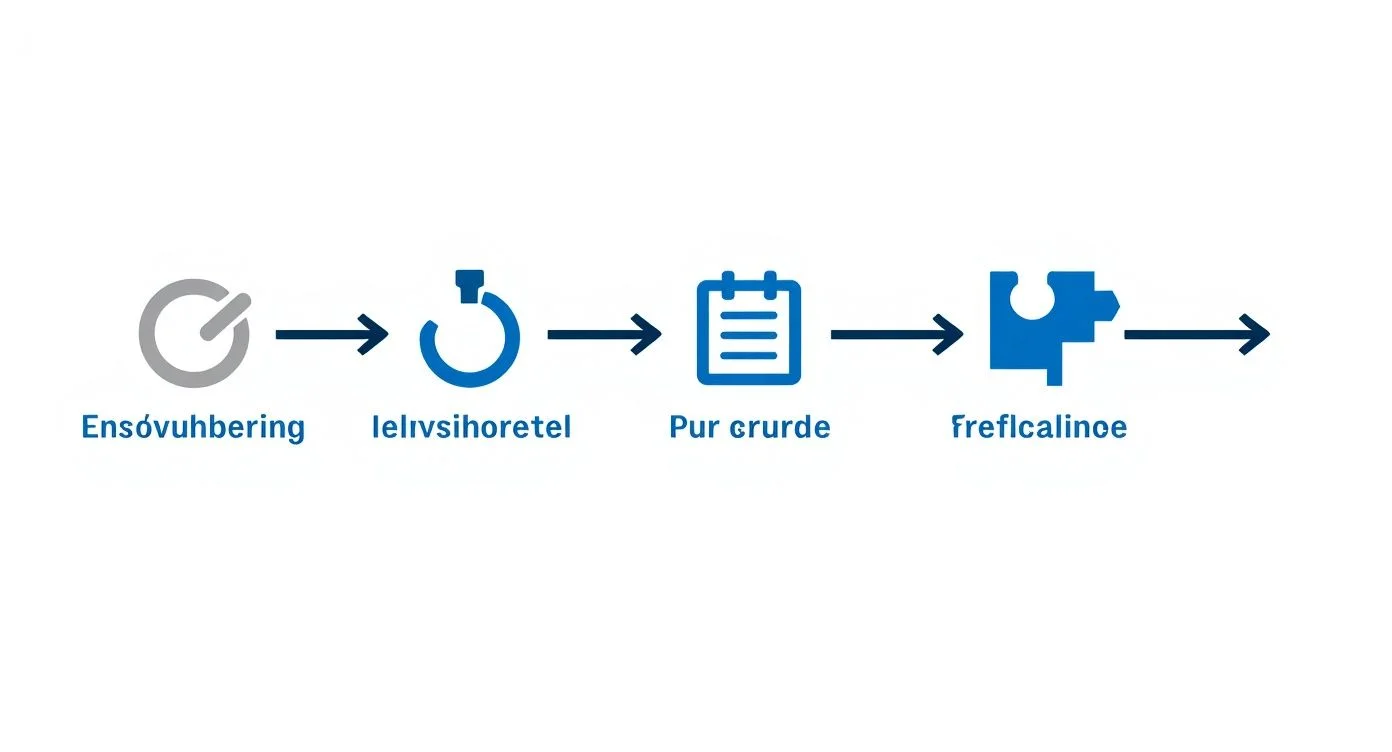
Building your first automated extraction workflow takes three steps: set your target URL and point-and-click the fields you want, teach the tool how to navigate pages, then save and test the workflow.
Here is how to build a reusable extraction workflow from scratch — no coding needed. We will use product data extraction as the example (product name, price, customer rating), but the same process applies to lead lists, job postings, or any other structured data.
Step 1: Set Your Target URL and Select Data Fields
Load the target page in your automation tool — a product category page, a search results list, a business directory. Once the page is loaded, use the point-and-click selector to show the tool what you want. Move your cursor over a product price and click — the AI understands you want the price for every item on the page, not just one. Repeat for each field: product name, price, rating. Each click builds a recipe the tool will follow on every future run.
Step 2: Teach the Tool to Navigate
When data spans multiple pages, you need to automate navigation too. Find the Next button on the page and click it with the selector tool — then mark it as a pagination control. Your workflow will now scrape page one, click Next automatically, and repeat until there are no more pages. The same logic applies to infinite scroll pages.
Step 3: Save, Test, and Deploy
Save your workflow with a descriptive name (e.g., Competitor Price Tracker). Before scheduling it, run a quick test — most tools preview extracted data in a live table so you can verify all columns are correct and data is clean. A five-minute check now prevents bad data downstream. Once confirmed, your workflow is ready to run on a schedule.
Try It With a Prebuilt Template
Do not want to build from scratch? Clura prebuilt templates cover the most common extraction jobs — LinkedIn prospecting, competitor pricing, product catalogs, and more.
Browse Templates →How to Automate Data Extraction with Scheduling
The real power of automation is scheduling: set your workflow to run daily, weekly, or hourly — and fresh, structured data flows in automatically without you ever having to log in.
A saved workflow is an asset. Scheduling turns it into a tireless team member that works around the clock without supervision. With your template saved, decide when it should run based on how quickly the underlying data changes.
Scheduling by Team Type
- E-commerce teams — daily price monitoring: Run the workflow every morning to capture competitor prices before your sales day starts. Add a weekly stock-check run to monitor inventory levels across competitors.
- Sales teams — weekly lead generation: Schedule a Monday run to scrape new companies from industry directories or find job postings signaling growth. Pair with LinkedIn scraping for a complete prospecting pipeline.
- Marketing teams — daily social monitoring: Track brand mentions or keywords to jump into relevant conversations in real time.
- Recruiting teams — weekly candidate sourcing: Automatically pull new profiles from job boards and professional platforms every week.
Every automation platform provides a run log. Check it periodically to see which runs succeeded, how many rows were collected, and whether any errors occurred. Most errors are minor. If you see repeated failures, it typically means the site layout has changed — open the workflow, re-click the fields on the updated layout, and save. That is usually a five-minute fix.
How to Clean and Enrich Extracted Data
Raw web data is often messy. Build an automated cleaning and enrichment pipeline directly into your workflow — remove duplicates, standardize formats, and add context before exporting.
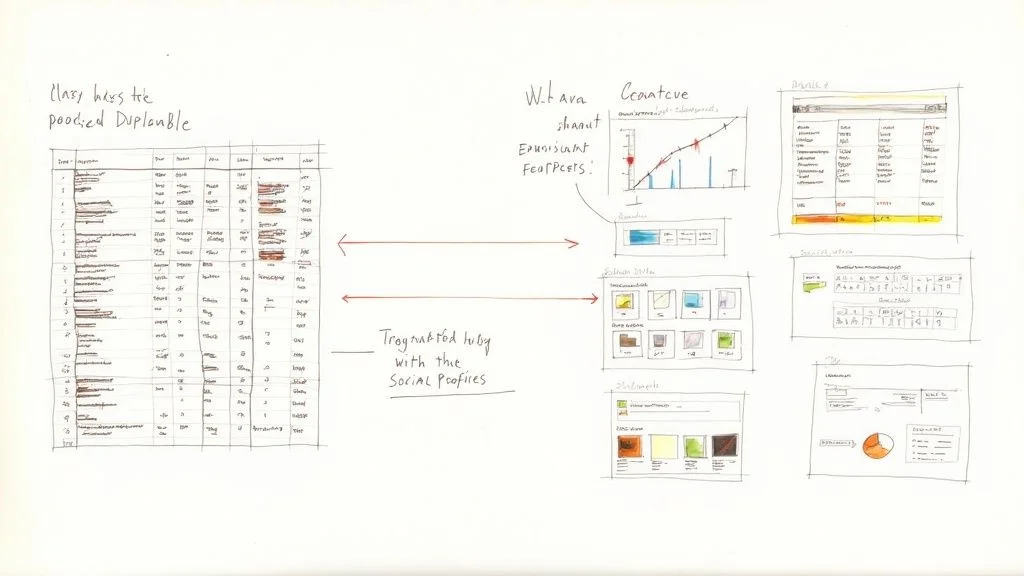
Raw web data arrives with noise: duplicate rows, inconsistent date formats, missing fields. Cleaning manually defeats the purpose of automation. Instead, build data hygiene rules directly into your workflow so every extraction delivers clean data automatically.
Step 1: Automate Data Cleaning
- Remove duplicates: Automatically deduplicate rows to keep lead lists and product catalogs clean.
- Standardize formats: Normalize dates, phone numbers, and prices to a consistent format.
- Handle blank fields: Set rules to delete incomplete rows or flag them for manual review.
Step 2: Enrich Your Data
Data enrichment takes a thin dataset and adds context automatically. Extract a list of company names from a directory, and an enrichment step can find associated email addresses, job titles, LinkedIn profiles, and firmographics — turning a basic list into an actionable database. The global data extraction market was valued at approximately $15 billion in 2025, with enrichment driving much of the projected 15% CAGR through 2033. Our data enrichment guide covers this in depth.
Step 3: Export Where It Needs to Go
Export to CSV or Excel for quick sharing and analysis, or connect directly to your CRM so new leads flow in automatically every morning. Direct integrations close the loop — turning a simple extraction workflow into an end-to-end, integrated business machine.
Best Practices for Reliable Automation
Be a respectful scraper: add delays between requests, target only the pages you need, check robots.txt, and handle login walls and dynamic content with built-in tool features.
Well-built workflows run reliably for months with minimal maintenance. These practices keep your automations stable and respectful of the websites you extract data from:
Be a Good Web Citizen
- Always check a site's robots.txt file and Terms of Service before automating data extraction.
- Add randomized delays between requests — this mimics human behavior and avoids triggering rate limits.
- Target only the specific pages and sections you need — not the entire site.
Handle Tricky Websites
- Login walls: Most tools let you record a login sequence as the first step of your workflow. Your bot signs in automatically before collecting data.
- Dynamic or interactive elements: For data hidden behind Load More buttons or filters, add a click step to your workflow — the bot performs the same interaction a human would before extraction begins.
- Major site redesigns: Open your template, re-click the fields on the new layout, and save. Modern AI tools often adapt to minor changes automatically.
Frequently Asked Questions
Is automated data extraction legal?
Extracting publicly available information is generally legal when done ethically. Avoid scraping private or personal data, accessing content behind a login without permission, or reproducing copyrighted material. Always check a website's Terms of Service and robots.txt. Ethical automated extraction respects website rules and never harms site performance for other users.
What is the difference between web scraping and using an API?
An API is the official, structured way a website offers its data. Web scraping reads the public page directly to extract data automatically. If a site offers a public API, it is almost always the more reliable option. But since most websites do not have public APIs, automated web scraping is the standard method for extracting data at scale.
What happens when a website changes its layout?
Modern AI-powered tools adapt to minor layout changes automatically. If a site undergoes a major redesign, open your saved workflow, re-select the data fields on the new layout using the point-and-click selector, and save. This usually takes five minutes. Monitoring your run logs regularly is the best way to catch these issues early.
Can I extract data from behind a login screen?
Yes. Most browser automation tools let you record your login sequence and save it as the first step of your workflow. The bot signs in automatically every time it runs before collecting data. Always ensure you have authorization to access and use that information per the site's terms.
How often should I schedule my data extraction workflows?
Match frequency to how quickly the data changes. Competitor prices change daily — schedule daily. Lead directories update weekly — schedule weekly. Starting with less frequent runs and increasing as you validate data quality is a good approach for new workflows.
Conclusion
Automated data extraction is no longer a technical project — it is a business capability. Any team can set up reusable, scheduled workflows that deliver clean, structured data without writing a line of code.
The ROI is direct: less time on manual research, more accurate data, and faster decisions. Start with one high-value workflow — competitor pricing, lead generation, or market monitoring — and expand from there.
Explore related guides:
- Web Scraping for Lead Generation — build automated pipelines of targeted prospects
- What Is Data Enrichment — add context and signals to your extracted data
- LinkedIn Data Scraping — extract prospect and company data from LinkedIn
- How to Build a Sales Pipeline — put your extracted data to work in a structured sales process
Start Automating Your Data Extraction
If you are still copying and pasting data manually, you are limiting how fast your team can move. Clura lets you extract data from any website, automate workflows, and build structured datasets instantly — no coding or complex setup required.
Add to Chrome — Free →About the Author