
Extract Data From Website Tables: A Step-by-Step Guide
Rohith
Many websites display valuable data in tables — product listings, pricing comparisons, business directories, and financial datasets. But manually copying rows from a table into a spreadsheet can take hours, especially when data spans multiple pages or hundreds of records.
Modern AI web scraper Chrome extensions make it possible to extract entire website tables automatically and export them to Excel or CSV in minutes — no coding required at any step.
This guide explains how website tables are structured, why extracting them is valuable, and the fastest workflow to collect table data without writing a single line of code.
Extract Any Website Table to Excel
Clura detects table rows automatically and exports a clean spreadsheet in minutes — no selectors or code needed.
Add to Chrome — Free →What Are Website Tables
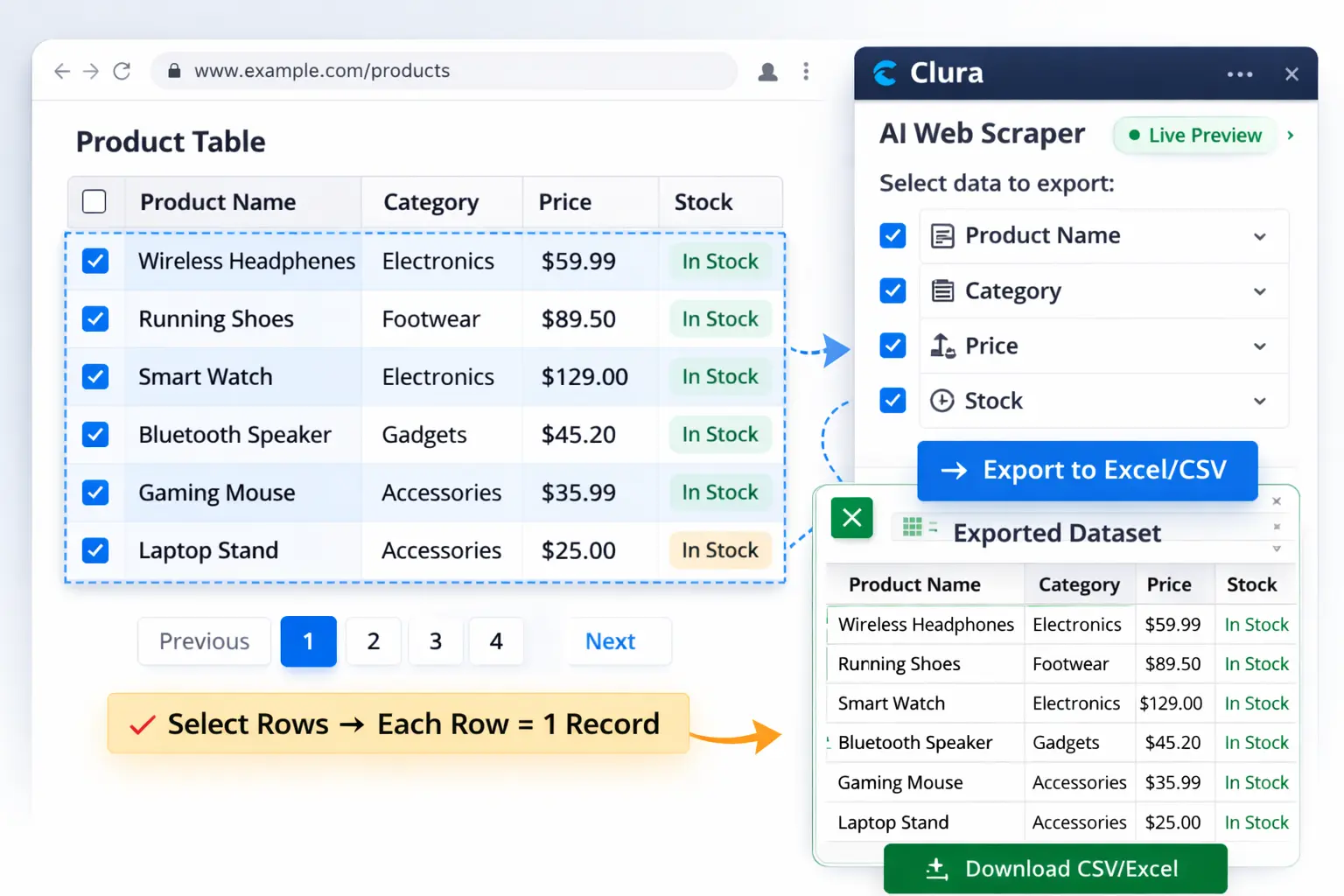
A website table is a structured HTML element that displays information in rows and columns — each row represents a record and each column represents a field. Tables are one of the most straightforward formats to extract structured data from automatically because the data is already organized.
For example, a product comparison table already maps directly to rows in a spreadsheet:
| Product | Price | Rating | Stock |
|---|---|---|---|
| Laptop A | $899 | 4.5 | In Stock |
| Laptop B | $799 | 4.3 | In Stock |
| Laptop C | $1,099 | 4.7 | Low Stock |
An AI scraper detects this structure automatically and exports every row as a record in your spreadsheet — whether the table has 10 rows or 10,000.
Why Businesses Extract Data From Website Tables
Businesses extract data from website tables to build structured datasets for market research, lead generation, price monitoring, and financial analysis — any workflow that depends on regularly updated data from competitor or reference sites.
Market Research and Price Monitoring
Competitor websites often publish pricing, product features, and availability in comparison tables. Extracting these tables allows businesses to track changes over time and adjust their own pricing strategy without visiting each page manually.
Lead Generation
Business directories frequently list companies in table format with fields like company name, website, location, and contact details. Sales teams extract these tables to build prospect databases and import them directly into CRM systems for outreach.
Financial Data Collection
Financial websites publish stock prices, company statistics, and economic indicators in tabular format. Analysts extract this data for research, modeling, and portfolio tracking — work that would take hours if done manually.
Research and Academic Datasets
Research reports, government databases, and public portals present datasets in HTML tables. Extracting these tables saves hours of manual copying and eliminates the transcription errors that come with it.
How Table Data Is Structured on Websites
Website tables use HTML table elements — <table>, <tr>, and <td> — to organize data into rows and columns. Each <tr> is a record and each <td> is a field value. This consistent structure is what makes tables straightforward to extract automatically.
Here is how manual copying compares to automated extraction:
| Method | Speed | Accuracy | Scales to 1,000+ rows |
|---|---|---|---|
| Manual copy-paste | Very slow | Error-prone | No |
| AI web scraper | Seconds | Consistent | Yes |
Some websites simulate tables using div-based layouts rather than proper HTML table tags. AI scrapers handle these cases by detecting the repeating visual pattern on the rendered page — so the extraction works regardless of how the developer built the markup.
How to Extract Data From Website Tables (Step-by-Step)
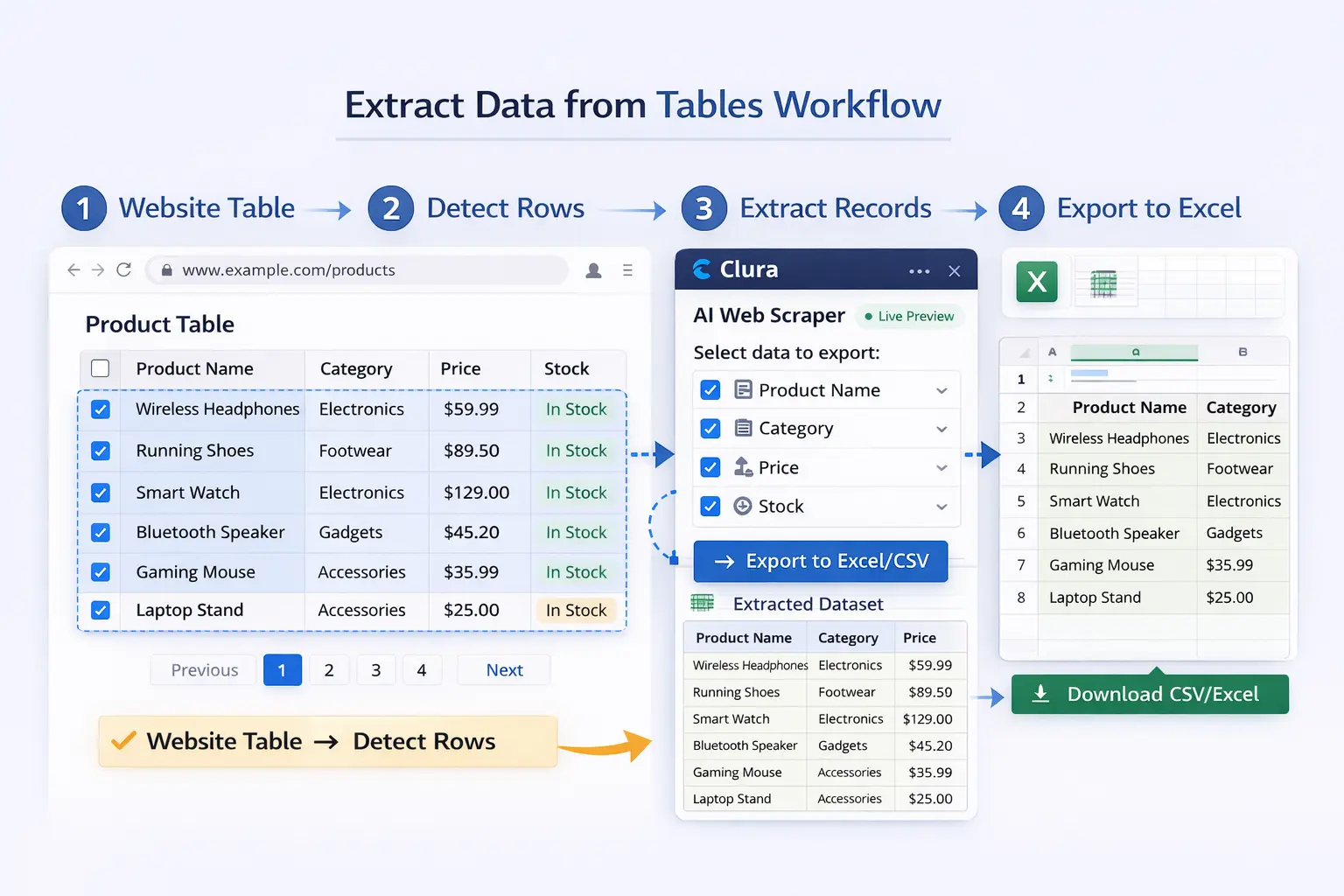
To extract data from a website table: open the page in Chrome, use an AI scraper to detect the table structure, preview the extracted records, and export to CSV or Excel in one click — no selectors or code required at any step.
Step 1 — Open the Target Page
Navigate to the webpage containing the table you want to extract. Common examples include product comparison pages, business directories, job listing sites, and financial data portals. The table should be fully visible in the browser before you begin.
Step 2 — Describe What You Want
Using an AI scraper like Clura, describe the data you want to collect in plain language. For example: "Extract company name, location, website, and phone number from every row in this table." No CSS selectors or HTML knowledge required.
Step 3 — Extract All Rows Automatically
The AI detects the table structure and collects every row automatically — whether the table has 20 rows or 2,000. If the table spans multiple pages, the scraper navigates pagination and continues collecting until the full dataset is assembled.
Step 4 — Preview the Dataset
Before exporting, review the extracted data in a table preview. Confirm the right columns were captured. If something looks off, adjust your description and re-run — the whole process takes seconds.
Step 5 — Export to CSV or Excel
Once the dataset looks correct, export it as CSV or Excel with a single click. The file is immediately ready to open and analyze — no additional formatting or cleanup required.
Extract Tables From Any Website
Clura's AI web scraper Chrome extension detects table rows automatically and exports a clean spreadsheet — directly from your browser.
Add to Chrome — Free →Challenges When Extracting Data From Website Tables
The main challenges when extracting data from website tables are tables built with div elements instead of HTML tags, content loaded dynamically by JavaScript, and data split across paginated pages — all of which browser-based AI scrapers handle automatically.
Div-Based Table Layouts
Many modern websites display tabular information using div elements instead of proper HTML table tags. Simple scrapers that only look for <table> elements will fail on these pages. AI-based scrapers detect the repeating visual pattern on the rendered page regardless of the underlying markup.
Dynamically Loaded Tables
Some websites load table content using JavaScript after the initial page render. Traditional server-side scrapers read raw HTML and cannot see this content. Browser-based scrapers run inside Chrome and see the fully rendered page — including all JavaScript-loaded table data.
Paginated Tables
Large datasets are often split across multiple pages with "Next" buttons or numbered pagination. A scraper must detect and navigate each page to build a complete dataset. A tool that only collects the first page will miss the majority of the available records.
[ Add screenshot here ]
Suggested file: /public/images/blog/extract-data-from-tables-paginated.webp
Alt: Paginated website table with multiple pages being scraped automatically into a single dataset
Paginated tables are extracted across all pages automatically — not just page one
Real Use Cases for Website Table Data Extraction
The most common use cases for website table extraction are ecommerce price monitoring, job market research, lead generation from business directories, and financial data collection — any dataset that is already structured and publicly visible on a webpage.
Ecommerce Price Monitoring
Online retailers extract product comparison tables from competitor sites to track pricing, availability, and feature differences. The data is exported to Excel and reviewed regularly to inform pricing decisions and identify market opportunities.
Job Market Research
Recruiters and HR analysts extract job listing tables from job boards and careers pages to track demand, benchmark salaries, and monitor competitor hiring activity. A structured spreadsheet of job titles, companies, locations, and salary ranges is far more actionable than browsing job sites manually.
Lead Generation From Business Directories
Business directories present company data in paginated tables with fields like company name, address, phone number, and website. Sales teams extract these tables using Clura's AI web scraper and import the results into CRM systems for targeted outreach campaigns.
Financial and Research Data
Researchers and analysts extract structured data from financial portals, public databases, and academic sources. Automated table extraction replaces hours of manual copying with a process that takes seconds and produces a clean, error-free dataset.
Frequently Asked Questions
Can I extract tables from any website?
Most publicly visible tables can be extracted automatically. Some websites use div-based layouts that mimic tables, or load table content dynamically with JavaScript — browser-based AI scrapers handle both cases because they run on the fully rendered page.
Can I export website tables to Excel?
Yes. Once a table is extracted, the data can be exported directly to Excel (.xlsx), CSV, or Google Sheets with a single click. The exported file is structured and ready for analysis without additional formatting.
Is scraping tables from websites legal?
Scraping publicly available data is generally legal in most jurisdictions. Always review the terms of service of any website before extracting data and comply with regulations such as GDPR when handling personal data.
Can I extract tables from dynamic websites?
Yes. Modern browser-based AI scrapers run inside Chrome and see the fully rendered page — including table data loaded dynamically by JavaScript. This makes them well-suited for financial sites, job boards, and any site that loads table content after the initial page load.
What is the difference between a table scraper and a general web scraper?
A general web scraper collects any repeating data structure on a page — cards, lists, or tables. A table scraper specifically targets HTML table elements. AI-based scrapers like Clura handle both automatically, detecting whether data appears in a table or a card layout without any configuration.
Conclusion
Website tables already contain structured data — rows, columns, and labeled fields. Extracting that data should be fast and straightforward, not hours of manual copying.
With a browser-based AI scraper, you can extract an entire table, navigate its pagination automatically, and export a clean spreadsheet in minutes. The result is a structured dataset ready for analysis, reporting, or import into any tool in your stack.
Explore related guides to go further with your data collection workflow:
- AI Web Scraper Chrome Extension — how Clura's AI scraper works
- Scrape Website to Excel — export any webpage data to .xlsx
- Export Website Data to CSV — download structured data as a CSV file
Ready to Extract Your First Table?
Turn any website table into a clean Excel or CSV file in minutes. No coding. No configuration. Just results.
Add to Chrome — Free →About the Author