
Export Website Data to CSV: A Simple Guide for Non-Technical Users
Rohith
Exporting website data to CSV allows you to turn messy web pages into structured datasets you can analyze in Excel, Google Sheets, or any BI tool. Many teams need this for lead generation, market research, and product monitoring — but manually copying data from websites is slow and error-prone.
Modern AI web scraper Chrome extensions make this process simple. Instead of writing scraping scripts, you open a webpage, describe the data you want, and export a clean CSV in minutes — no code at any step.
Try Clura Free
Extract website data and export it to CSV automatically — no coding required.
Add to Chrome — Free →What "Export Website Data to CSV" Means
Exporting website data to CSV means extracting information from a webpage and saving it as a structured spreadsheet file. CSV (Comma-Separated Values) is a plain text format where each row represents a record and each column represents a data field.
For example, a webpage listing contacts might be scraped and exported as:
| Name | Company | |
|---|---|---|
| John Smith | Acme Inc | john@acme.com |
| Sarah Lee | TechLabs | sarah@techlabs.com |
Instead of copying each row manually, a web scraper collects this information automatically and converts it into a downloadable CSV file — ready to open in Excel, Google Sheets, Python, SQL databases, or any CRM system.
Why CSV Is the Best Format for Web Data
CSV is the most common output format in web scraping because it is simple, lightweight, and universally supported across every tool that works with data.
Compatible With Almost Every Tool
CSV files can be opened directly in Excel, Google Sheets, Python, SQL databases, and data visualization tools without any conversion. This universal compatibility makes CSV the easiest format to share and work with downstream.
Lightweight and Fast
Unlike Excel files, CSV contains only raw data with no formatting or embedded formulas. This makes CSV files smaller, faster to load, and easier to import into databases and automated pipelines.
Perfect for Automation
CSV is the default format in most data pipelines. Once you export website data to CSV, you can automatically upload it into CRM systems, analytics dashboards, and marketing tools — with no manual reformatting required.
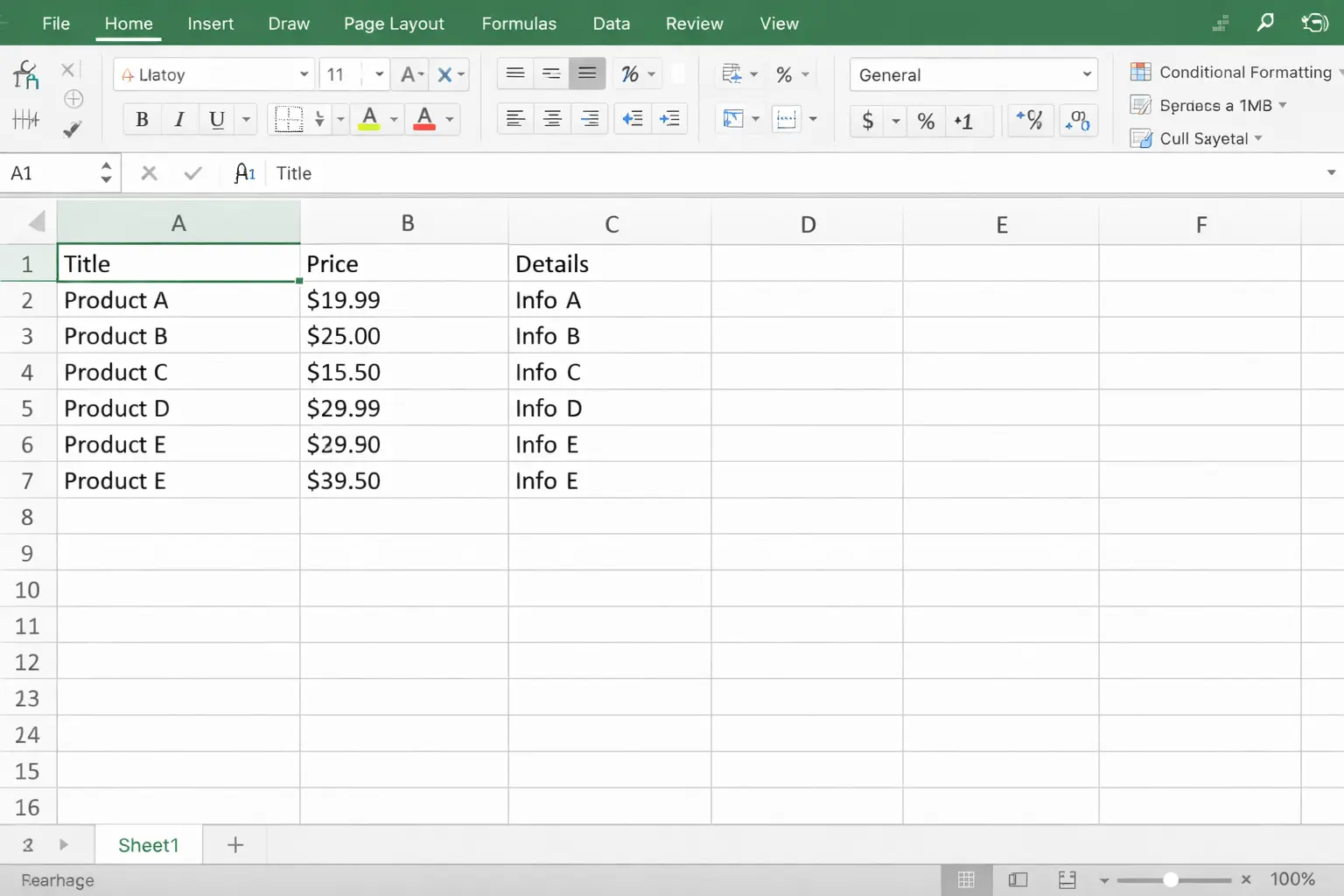
Common Challenges When Exporting Website Data
Exporting website data sounds simple, but most websites are not designed for easy data extraction. Here are the obstacles teams run into most often.
Dynamic Websites
Many modern websites load content dynamically using JavaScript. Traditional scrapers that read raw HTML often fail to see this content at all. Browser-based AI scrapers avoid this problem entirely because they run inside Chrome and see the fully rendered page — the same as a human visitor.
Pagination
Large datasets are often spread across multiple pages. A scraper must detect and extract records from every page to build a complete dataset. Missing even one page means missing data from the final CSV.
Repeating Data Structures
Most websites display information in repeating cards, rows, or directory entries. The scraper must identify these patterns automatically and collect every instance — not just the first visible record on screen.
How to Export Website Data to CSV (Step-by-Step)
To export website data to CSV: open the target page in Chrome, describe the fields you want to capture, let the AI detect all repeating records, preview the dataset, and export to CSV in one click — no code required.
Step 1 — Open the Target Website
Navigate to the webpage containing the data you want. Common examples include ecommerce product listings, company directories, and job boards. The page should contain repeating data — the same type of information repeated for each listing or record.
Step 2 — Describe the Data Fields
Using an AI scraper like Clura, describe the fields you want in plain language. For example: "Extract company name, contact email, phone number, and location from every listing on this page." No selectors or configuration required.
Step 3 — Extract Records Across the Page
The AI automatically detects the repeating data structure and collects all matching records — whether there are 20 or 2,000 of them. Product cards, directory listings, and job entries are all recognized and extracted into a structured dataset.
Step 4 — Preview the Dataset
Before exporting, review the extracted data in a table preview. Confirm the right fields were captured and catch any issues early. If something looks off, adjust the description and re-run.
Step 5 — Export to CSV
Once the dataset looks correct, export it to CSV with a single click. The file is immediately ready to open in Excel or Google Sheets — no additional cleaning or formatting required. You can also export directly to Excel if you prefer that format.
Export Website Data to CSV in Minutes
Clura's AI web scraper Chrome extension collects hundreds of records and exports a clean CSV file — directly from your browser.
Add to Chrome — Free →Use Cases for Exporting Website Data to CSV
Exporting website data to CSV supports a wide range of business workflows. Here are the most common and highest-value applications.
Lead Generation
Sales teams scrape business directories to build prospect lists. Typical fields include company name, contact email, phone number, and location. The exported CSV is imported directly into a CRM for outreach campaigns — no manual data entry required.
Ecommerce Product Monitoring
Online retailers track competitor pricing and product listings. They export product name, price, stock status, and rating from competitor sites to CSV and analyze pricing changes, product rankings, and availability over time.
Job Market Research
Recruiters scrape job boards to analyze hiring trends. Exported fields include job title, company, salary range, and location. The resulting CSV helps HR teams track demand for specific roles and benchmark salaries across markets.
Market Intelligence
Analysts export product listings, review data, and pricing from multiple sources to build comprehensive market datasets. CSV makes it easy to combine data from different sites and run analysis in Python or Excel.
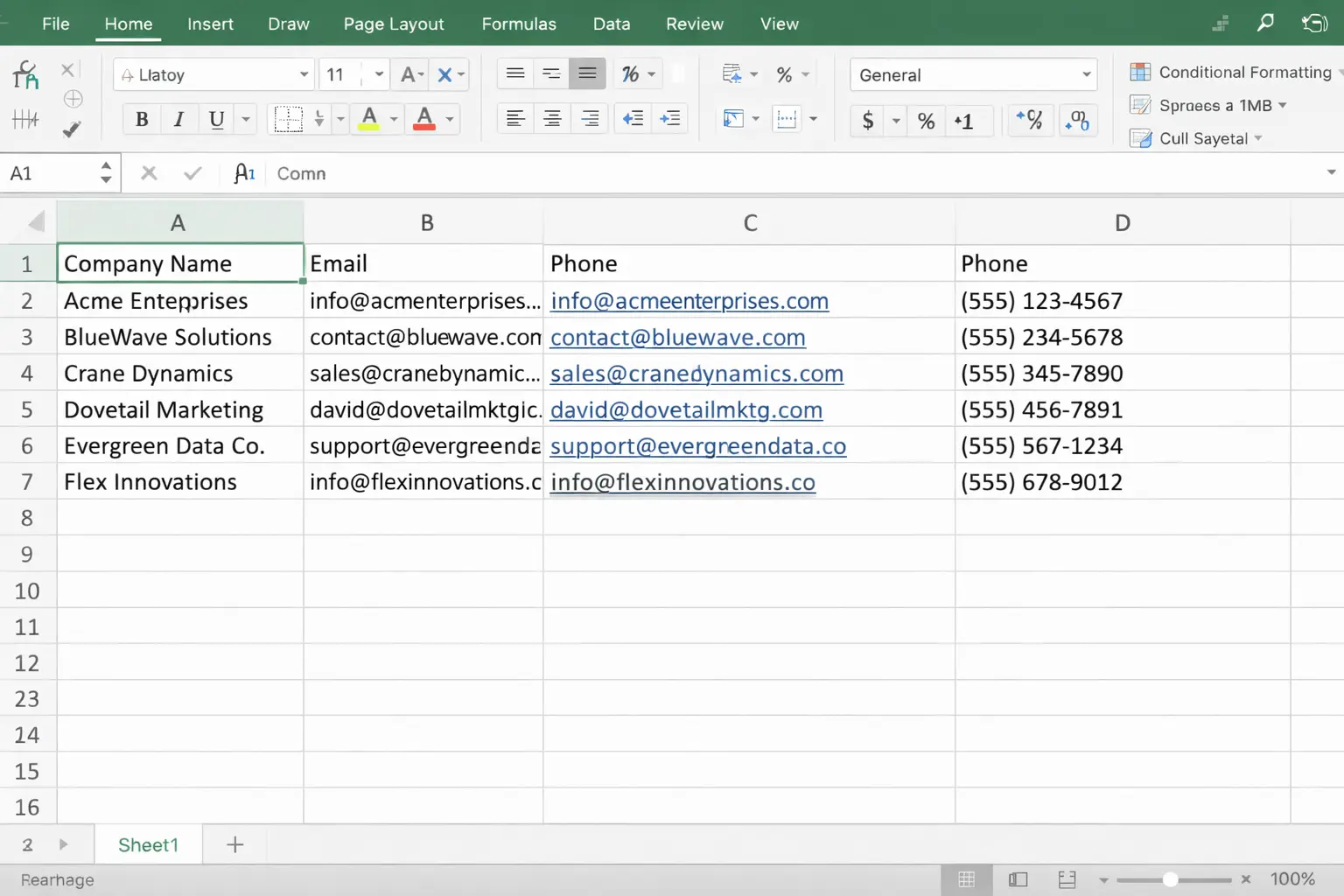
CSV vs Excel for Web Scraping
CSV and Excel are both common export formats. Here is how they compare for web scraping workflows.
| Feature | CSV | Excel (.xlsx) |
|---|---|---|
| File size | Small | Larger |
| Load speed | Fast | Slightly slower |
| Tool compatibility | Universal | Mostly Microsoft tools |
| Automation pipelines | Excellent | Limited |
| Quick manual analysis | Works | Better formatting options |
For large datasets and automation workflows, CSV is the better choice. For quick manual review and analysis with formatting, Excel is more convenient. Clura supports both — export in whichever format fits your workflow.
Frequently Asked Questions
What is a CSV file?
A CSV (Comma-Separated Values) file is a simple text file that stores tabular data using commas to separate values. It is one of the most widely used formats for exchanging datasets between software tools including Excel, Google Sheets, Python, and CRM systems.
Can I export website tables to CSV?
Yes. Most web scraping tools can detect HTML tables on a page and extract them directly into a structured CSV file. AI-based scrapers like Clura can also handle repeating card layouts and directory listings beyond standard HTML tables.
Is web scraping legal?
Web scraping publicly available data is generally legal in most jurisdictions. Always review the terms of service of any website before scraping it and comply with regulations such as GDPR when handling personal data. The Electronic Frontier Foundation provides useful context on data access rights.
Can I export data from dynamic websites to CSV?
Yes. Browser-based AI scrapers run inside Chrome and can see fully rendered pages — including content loaded by JavaScript, infinite scroll, and pagination — making them well-suited for modern dynamic websites that simple scrapers cannot handle.
Conclusion
Exporting website data to CSV is one of the fastest ways to turn web content into structured, reusable datasets. Instead of copying information row by row, modern AI scraping tools can extract thousands of records in minutes and deliver a clean CSV file ready for any tool in your stack.
CSV is lightweight, universally compatible, and the default format for data pipelines — making it the right choice for teams working in sales, research, ecommerce, and analytics.
Explore related guides to go further with your data collection workflow:
- AI Web Scraper Chrome Extension — how Clura's AI scraper works
- Scrape Website to Excel — export directly to .xlsx format
- Scrape Dynamic Websites — handle JavaScript-rendered pages
- No-Code Web Scraping — extract data without writing any code
Ready to Export Your First CSV?
Turn any webpage into a clean CSV file in minutes. No coding. No configuration. Just results.
Add to Chrome — Free →About the Author