
Extract Data From a Website to Excel: The Smart Way
Clura Team
Manually copying and pasting data from a website into Excel is a soul-crushing task — but it does not have to be. You can extract data from a website to Excel using smart, modern methods that save you countless hours and deliver clean, accurate data every single time. The web scraping market is projected to hit USD 1.17 billion in 2026, a clear signal that sales, marketing, and e-commerce teams everywhere are ditching the manual grind.
This guide walks you through five practical methods — from one-click AI browser agents to Excel's built-in Power Query feature — so you can pick the right tool for your situation and start working smarter today. For more on how these techniques fit into broader data collection automation, check our dedicated guide.
Extract Website Data to Excel in One Click
Clura is the AI-powered Chrome extension that turns any website into a clean spreadsheet instantly. No code, no Power Query setup — just click and export.
Add to Chrome — Free →How to Choose the Right Data Extraction Method
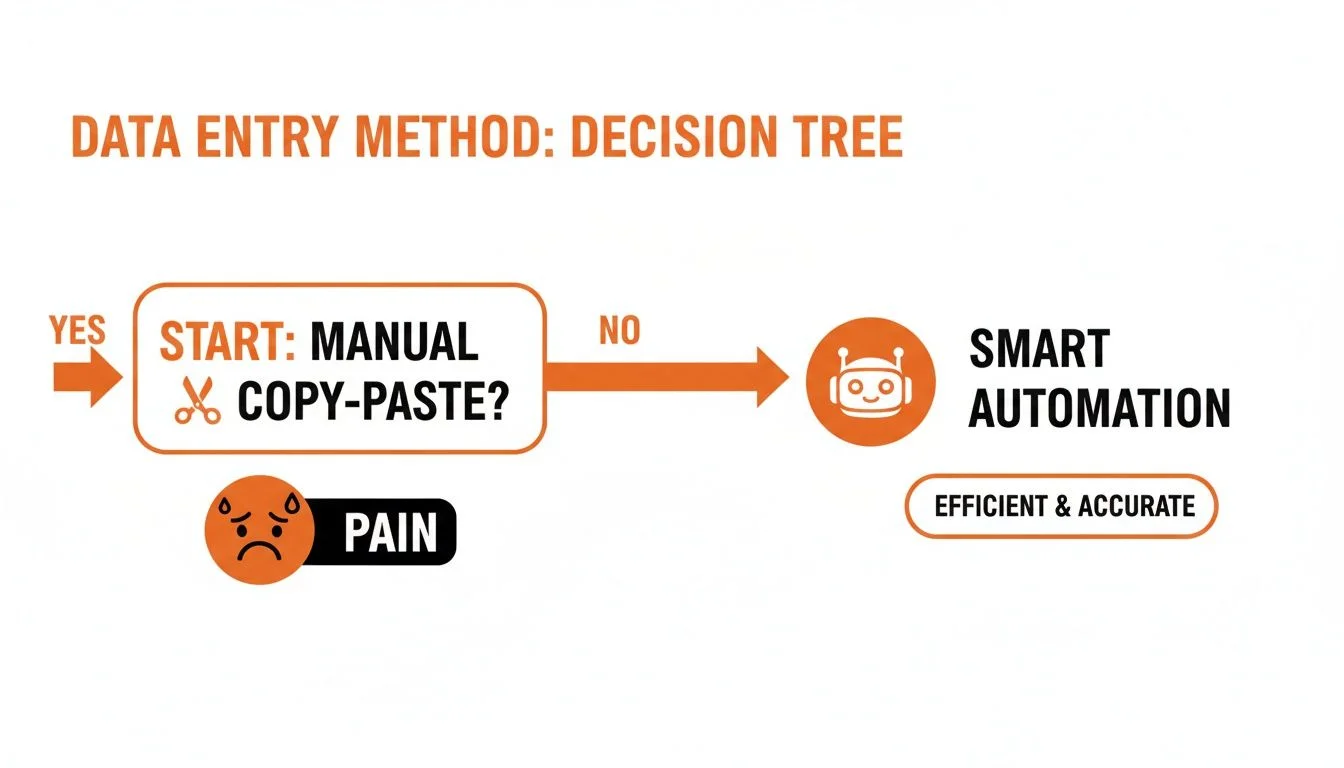
Choosing how to extract data from a website to Excel depends on three factors: the complexity of the target website, how often you need the data, and your technical skill level.
There is no single best way to pull web data into Excel. The perfect tool depends on your goals, your comfort level with technology, and how frequently you need the data refreshed. Think of it like choosing tools for a home project — you would not use a sledgehammer to hang a picture frame.
| Method | Best For | Skill Level | Scalability |
|---|---|---|---|
| AI Browser Agent | Complex dynamic sites, repeatable workflows | Beginner | High |
| Excel Power Query | Simple HTML tables (Wikipedia, financial reports) | Intermediate | Moderate |
| Chrome Extension | Quick one-off grabs from simple pages | Beginner | Low |
| Google Sheets IMPORTHTML | Single public table imports | Beginner | Low |
| Python (BeautifulSoup) | Large-scale custom extraction projects | Advanced | Very high |
| Manual Copy-Paste | Handful of rows from a static page | Beginner | None |
The sweet spot for most business users is with AI-powered tools that mix incredible power with dead-simple usability. You get the results without needing a computer science degree.
Effortless Extraction With an AI Browser Agent
An AI browser agent extracts data from websites to Excel by automatically scanning a page, identifying structured data patterns, navigating pagination, and exporting a clean CSV in one click — no code required.
Imagine pointing at exactly what you need on a website — product names, prices, contact info — and watching it appear in a clean spreadsheet. That is the reality of using an AI browser agent. Instead of you doing the mind-numbing work, the AI acts as your personal data assistant, learning to grab the same information across hundreds of pages flawlessly.
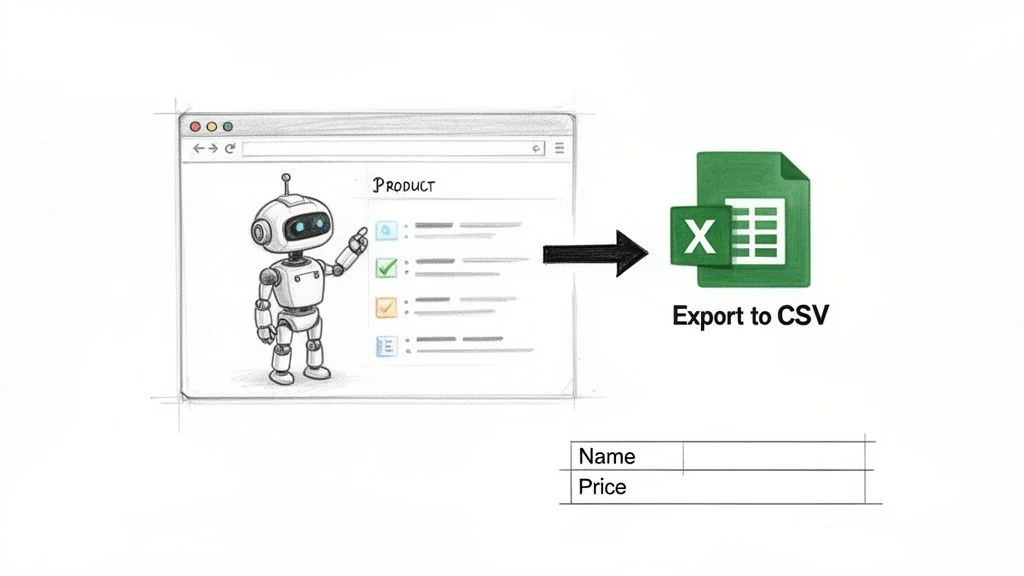
- Go to the website you want to extract data from.
- Click the Clura browser extension icon in your toolbar.
- Choose a pre-built template matching your use case (e.g., Lead List Builder).
- Click Export — the agent scrapes all pages and hands you a ready-to-use CSV.
AI agents handle pagination automatically, navigate infinite-scroll pages, and can operate behind logins using your existing browser session. What used to require custom code now takes under a minute for any business user.
- Sales prospecting: scrape LinkedIn or industry directories for ideal customer profiles.
- E-commerce price monitoring: automatically track competitor prices on Amazon or Shopify.
- Market research: aggregate customer reviews from G2 or Capterra to analyze sentiment.
- Recruiting: pull candidate profiles from job boards to build a talent pipeline.
Using Excel's Built-in Power Query
Excel's Power Query From Web feature connects directly to a URL, detects HTML tables on the page, and lets you clean and transform the data before it lands in your spreadsheet — no third-party tools required.
Tucked inside Excel's Data tab is a powerful built-in tool called Power Query. Its From Web feature is a game-changer for pulling data directly from public HTML tables.
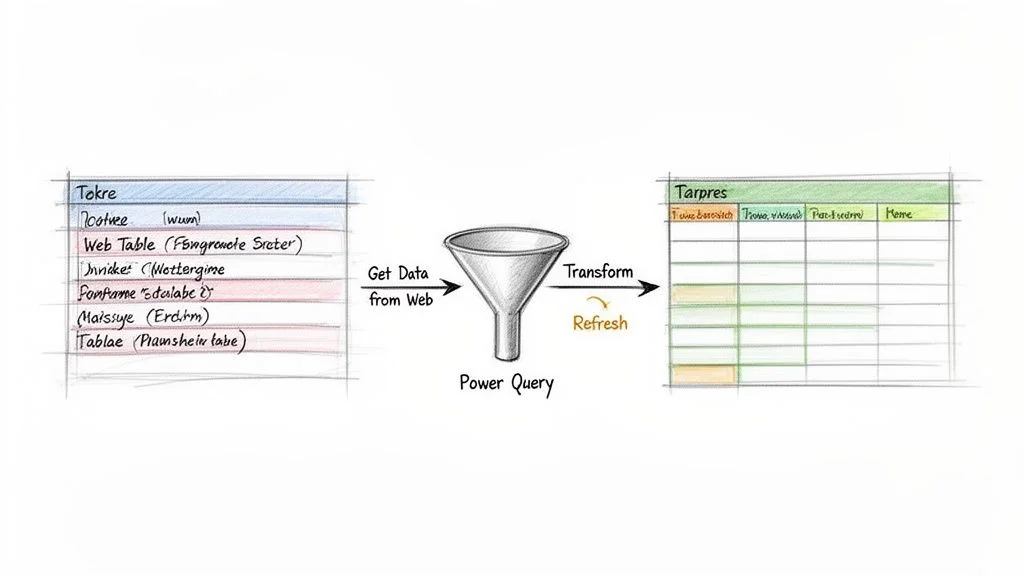
- Go to the Data tab in Excel and click From Web.
- Paste the URL of the page containing the data and click OK.
- In the Navigator window, select the table you want and preview it.
- Choose Load to pull data directly, or Transform Data to clean it first in the Power Query Editor.
- Set up automatic refreshes: right-click your query, choose Properties, and enable Refresh Every X minutes.
Teams can cut data cleanup time by over 50% just by switching from manual copy-paste to Power Query. The efficiency gains are real.
Skip the Power Query Setup
For complex or dynamic websites — LinkedIn, e-commerce stores, social media — Clura's AI agent is faster and requires zero Excel configuration. Just click and export.
Add to Chrome — Free →Other Methods: Chrome Extensions, Google Sheets, and Python
Chrome extensions handle quick one-off extractions, Google Sheets IMPORTHTML pulls simple public tables with a formula, and Python with BeautifulSoup gives developers maximum flexibility for large-scale custom projects.
Chrome Extensions
Chrome-based scraping extensions are handy for quick, targeted data grabs from simple pages. They are beginner-friendly and require no setup beyond installation, making them perfect for small one-off tasks.
Google Sheets IMPORTHTML
Google Sheets has a built-in function that can pull public HTML tables directly from a URL. The formula is: =IMPORTHTML("URL", "table", index_number). Once the data is in Sheets, download it as an Excel file. It is a brilliant shortcut for simple, structured public data like Wikipedia tables.
Python and BeautifulSoup
For developers, Python libraries like BeautifulSoup and Requests provide ultimate power and flexibility. This approach handles complex login forms, JavaScript-heavy pages, and fully custom extraction logic. The trade-off is a steep learning curve — it is not the right choice for non-technical business users. For most teams, an AI agent delivers 95% of the results with 5% of the effort.
Your Top Web Data Extraction Questions Answered
The most common questions about extracting website data to Excel cover legality, handling login-protected pages, what to do when a site redesigns, and how to clean data once it is in Excel.
Is It Legal to Scrape Data From Websites?
Yes, scraping publicly available data is generally legal. Multiple court rulings have backed this up. Always check a site's robots.txt file, avoid scraping copyrighted or private content, and never overload servers with excessive requests. As long as you gather public info responsibly, you are on safe legal ground.
How Do You Handle Sites That Require a Login?
AI browser extensions operate inside your browser and can piggyback on your existing login session. Simply log in to the site as you normally would, navigate to the page you need, and activate the extension. Always check a platform's Terms of Service regarding automated data gathering.
What Happens When a Website Changes Its Layout?
Power Query and Python scripts need manual updates when a site redesigns. Modern AI agents are built with smarter logic that adapts to small changes automatically, and most let you quickly re-teach the new layout in a couple of clicks rather than hours of code fixes.
How Do I Clean Data in Excel After Extracting It?
- Remove Duplicates: Data tab > Remove Duplicates for instant deduplication.
- Trim Whitespace: use =TRIM(A2) to remove extra spaces from text cells.
- Text to Columns: split fields like full names into separate columns.
- Find and Replace: standardize variations like US / U.S. / United States to a single value.
Frequently Asked Questions
What is the easiest way to extract data from a website to Excel?
The easiest method for most business users is an AI browser agent like Clura. Install the Chrome extension, open the target website, choose a pre-built template, and click Export. You get a clean CSV ready for Excel in under a minute, no technical knowledge required.
Can Excel directly pull data from a website?
Yes. Excel's Power Query feature (Data tab > From Web) can connect to a URL and detect HTML tables on the page. It works well for simple, structured public tables. For dynamic or JavaScript-heavy sites, an AI browser agent like Clura is more reliable.
How do I use Google Sheets to import website data?
Use the IMPORTHTML formula: =IMPORTHTML("URL", "table", 1). Replace URL with the page address and change the index number to target different tables on the page. Once imported, download the sheet as an Excel file from File > Download > Microsoft Excel.
Is web scraping to Excel legal?
Extracting publicly available data is generally legal. Always respect a site's robots.txt file, avoid scraping private or copyrighted content, and do not overload servers with requests. Responsible use of AI scraping tools is well within legal norms.
Conclusion
You now have five practical methods for extracting website data to Excel, from one-click AI agents to Power Query's built-in refresh capabilities. The right choice depends on the complexity of your target site and how often you need the data.
For most business users in sales, marketing, or research, an AI browser agent delivers the best combination of power and simplicity — no code, no configuration, just clean data ready for analysis.
Explore related guides:
Ready to Extract Website Data Without the Grind?
With Clura, you can pull clean, structured data from virtually any website in a single click. No Excel formulas, no Python scripts — just instant results ready for your spreadsheet.
Add to Chrome — Free →About the Author