
Scrape Data From Website Chrome Extension: The Ultimate Guide
Clura Team
Tired of the copy-paste nightmare when you need to collect data from a website? A scrape data from website Chrome extension is your secret weapon to instantly grab lead lists, competitor prices, or research data right from your browser. It turns hours of manual work into a simple, one-click process — no code, no complex setup.
Nearly 65% of enterprises now use external web data for market analysis, driving the web scraping market to grow 23% year-over-year. This guide shows you exactly how to choose, install, and use a scraping extension effectively, with real workflows for sales, marketing, and recruiting. For deeper context on how this technology works, see our guide on web scraping AI.
Start Scraping in Seconds — No Code Needed
Clura is the AI-powered Chrome extension with pre-built templates for LinkedIn, Amazon, Crunchbase, and dozens more. Install free and pull your first dataset in under a minute.
Add to Chrome — Free →Why a Scraping Extension Is a Game-Changer
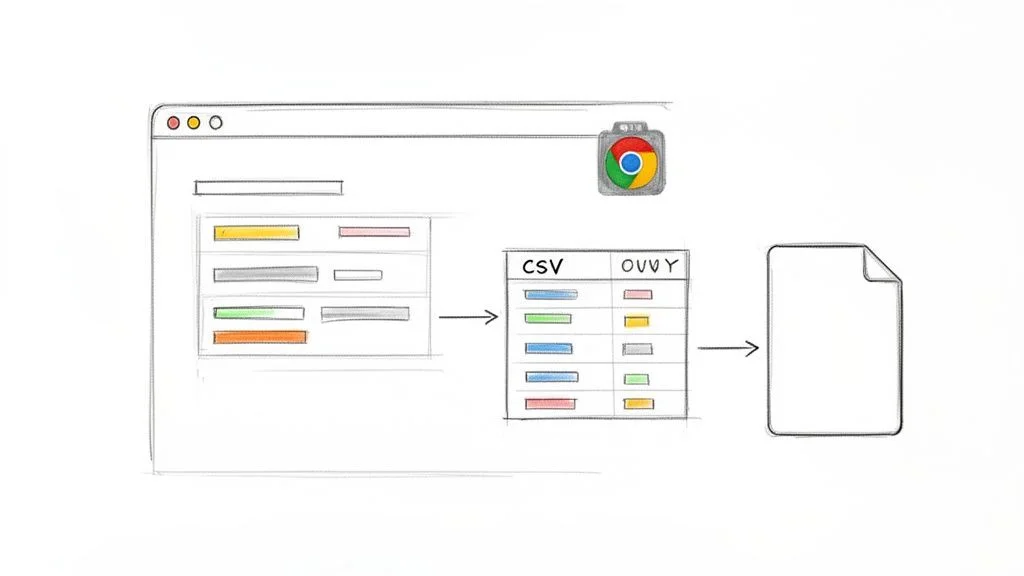
A Chrome scraping extension eliminates manual copy-paste by using AI to automatically identify data patterns on any webpage and export them as a clean, structured CSV in seconds.
| Feature | Manual Copy-Paste | Automated Chrome Extension |
|---|---|---|
| Speed | Minutes per record | Hundreds of records in seconds |
| Accuracy | High risk of typos | 99.9% accurate extraction |
| Scalability | Not practical for large datasets | Handles thousands of data points across pages |
| Effort | Repetitive and mentally draining | One-click execution |
| Integration | Requires manual reformatting | Direct CSV export or CRM integration |
The concept is simple: if you can see the data in your browser, a smart extension can capture it for you. This turns hours of grunt work into seconds of automated action.
- Boost Speed and Efficiency: collect hundreds of data points in the time it takes to manually copy a few.
- Ensure Data Accuracy: automated tools eliminate human error and formatting mistakes.
- Automate Your Workflow: export clean data directly to a CSV or send it straight to your CRM.
Choosing and Installing Your First Scraping Extension
The best Chrome scraping extensions combine AI-driven data recognition, pre-built templates for popular websites, flexible CSV export, and a clean no-code interface that requires no technical setup.
When choosing a scraper, focus on the features that truly matter. Not all extensions are equal — the difference between a basic tool and a great one comes down to a few key capabilities.
- AI-Driven Data Recognition: automatically spots lists, tables, and patterns without manual setup.
- Pre-built Templates: ready-to-use recipes for LinkedIn, Amazon, Google Search, and other high-value sources.
- Flexible Export Options: CSV export as a minimum; direct CRM integrations as a bonus.
- Ease of Use: a clean interface that lets you start scraping in just a few clicks.
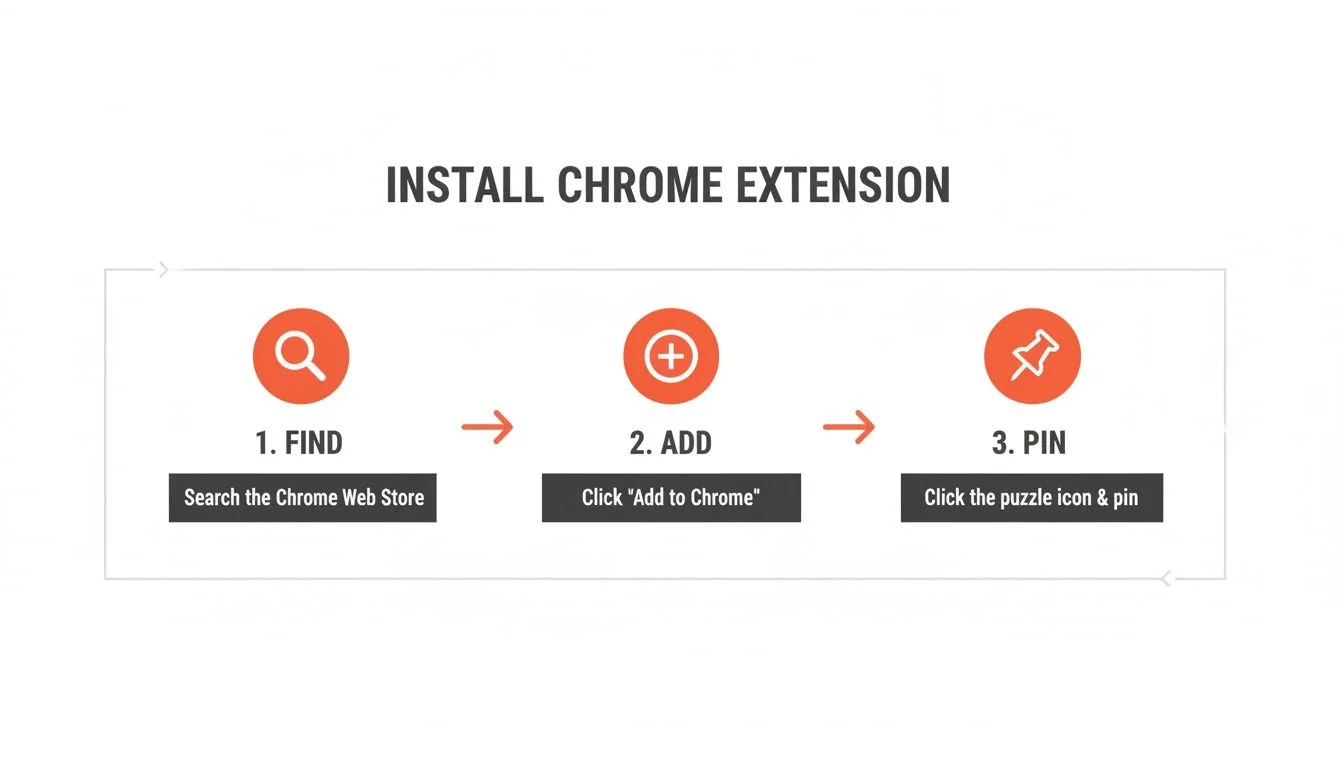
- Go to the Chrome Web Store and search for your chosen extension.
- Click Add to Chrome to install it.
- Pin the extension by clicking the puzzle-piece icon in the toolbar — this keeps it visible for one-click access.
- Create a free account to unlock pre-built templates and the data dashboard.
A Step-by-Step Guide to Your First Scrape
Running your first scrape with a Chrome extension takes three steps: open the target page, choose a pre-built template that matches your data source, and run the agent — it handles pagination automatically and exports a clean CSV when done.
Let's walk through a real example: extracting a list of leads from LinkedIn Sales Navigator. This is one of the most common and valuable use cases for any sales team.
- Open your target search results page in LinkedIn Sales Navigator.
- Click the extension icon and select the LinkedIn Sales Navigator Search template.
- The AI immediately scans the page, identifying names, titles, and company info.
- Set pagination to scrape multiple pages — the agent handles clicking Next automatically.
- Click Export to CSV when the run completes.
Pagination is a total game-changer. It is the difference between collecting a few contacts and building a comprehensive dataset from an entire search in one automated workflow.
Get Your First Lead List in Under 5 Minutes
Clura has pre-built templates for LinkedIn Sales Navigator, Google Search, Crunchbase, and more. Install the free extension and start building targeted prospect lists right now.
Add to Chrome — Free →Practical Scraping Workflows for Every Professional
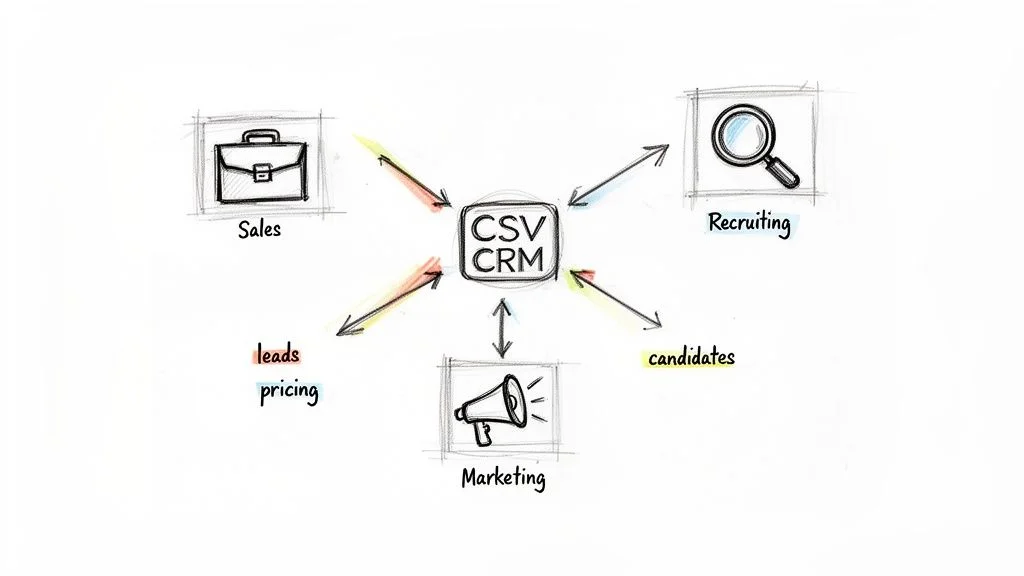
Chrome scraping extensions deliver immediate value for three core roles: sales reps building prospect lists, marketers monitoring competitor pricing and content, and recruiters building targeted talent pipelines.
For Sales: Build Prospect Lists Fast
Find your source (industry directory, LinkedIn search), run the scraper with a pre-built template, collect name, job title, company, location, and profile URL, and export with pagination enabled. Then use an email extractor Chrome extension to enrich the list with direct contact information before CRM upload.
For Marketing: Monitor Competitors
Set up a weekly routine to scrape competitor product pages for pricing, sale discounts, and stock levels. Collect review section star ratings and recent customer comments. Exporting this weekly creates a powerful historical record of competitor pricing strategy and content shifts.
For Recruiting: Source Top Talent
Run targeted skills searches on job boards, scrape candidate summaries including role, key skills, experience, and profile URL, then export to a centralized talent pipeline spreadsheet. This workflow builds a richer candidate pool in a fraction of the time compared to manual searching.
How to Handle Common Scraping Challenges
The three most common scraping challenges — dynamic content and infinite scroll, login-protected pages, and ethical and legal considerations — all have straightforward solutions with a modern AI Chrome extension.
Dealing With Dynamic Content and Logins
Modern AI extensions detect infinite scroll automatically and mimic human scrolling to load all content before extracting. For data behind a login, simply log in to the site as normal and then activate the extension — it operates inside your authenticated browser session.
Ethical and Legal Guidelines
- Always respect a website's Terms of Service — many prohibit automated data collection.
- Stick to publicly available data; avoid anything that feels private or sensitive.
- Do not overload servers — run scrapers at a reasonable pace. Good extensions build in automatic delays.
- When possible, set a clear User-Agent in your tool settings to signal transparent bot activity.
Frequently Asked Questions
Is data scraping with a Chrome extension legal?
Generally yes — scraping publicly available data is legal. Always check a website's Terms of Service, as some sites prohibit automated collection. Avoid scraping personal data, copyrighted content, or anything sensitive. The goal is to collect public information without disrupting the site's service.
Can you scrape data behind a login with a Chrome extension?
Yes. A browser-based extension operates inside your authenticated session. Log in to the site as you normally would, navigate to the page you want to scrape, and run the extension. It sees everything your logged-in account can see.
How do I handle infinite scroll pages?
Modern AI-powered Chrome extensions detect infinite scroll automatically and mimic human scrolling to load all content before extracting. Some tools let you specify how many scroll actions to perform before scraping begins, ensuring you get a complete dataset.
What is the best format to export scraped data?
CSV is the most versatile format — it opens natively in Google Sheets, Excel, and virtually any data tool. For advanced workflows, look for extensions that offer direct integrations or webhooks to send data straight to your CRM or marketing platform without any manual steps.
Which Chrome extension is best for scraping LinkedIn?
Clura is among the best options for LinkedIn scraping. It has pre-built templates for LinkedIn Sales Navigator search results and LinkedIn company pages, handles pagination automatically, and exports clean CSV files ready for your CRM or outreach sequences.
Conclusion
A scrape data from website Chrome extension transforms your workflow from manual labor to strategic action. Instead of losing hours to copy-paste, you focus on what moves the needle: analyzing data, nurturing leads, and making smarter decisions.
Start with one specific, high-value workflow this week. For sales teams, that means a targeted LinkedIn prospect list. For marketers, it means a competitor pricing snapshot. The time savings become obvious within the first run, and the compounding advantage of automated data collection builds from there.
Explore related guides:
Ready to Stop Copying and Pasting for Good?
Clura is the AI-powered Chrome extension that makes web scraping simple. Grab your free account and turn the web into your personal data source today.
Add to Chrome — Free →About the Author