
How to Scrape Website Data to Excel: A 5-Minute Guide
Clura Team
What if you could grab your competitor's pricing, a fresh list of sales leads, or the latest market trends and have it all sitting in an Excel spreadsheet, ready for analysis? That's the power you unlock when you learn how to scrape website data to Excel. This isn't just a niche tech skill anymore — it's a massive advantage for any business that wants to make smarter, faster decisions.
This guide bridges the gap between messy web data and the clean, organized data your business needs. We'll cover three practical methods — a one-click browser extension, Google Sheets IMPORTXML, and Python — so you can pick the approach that fits your project size and technical comfort level.
Scrape Website Data to Excel in Seconds
Clura's AI browser extension detects all structured data on any webpage and exports a clean Excel file in one click. No code, no configuration.
Add to Chrome — Free →How Web Data in Excel Fuels Business Growth
Automating data collection into Excel frees your team from manual data entry so they can focus on analysis and strategy — turning competitor pricing, lead directories, and market trends into immediately actionable business intelligence.
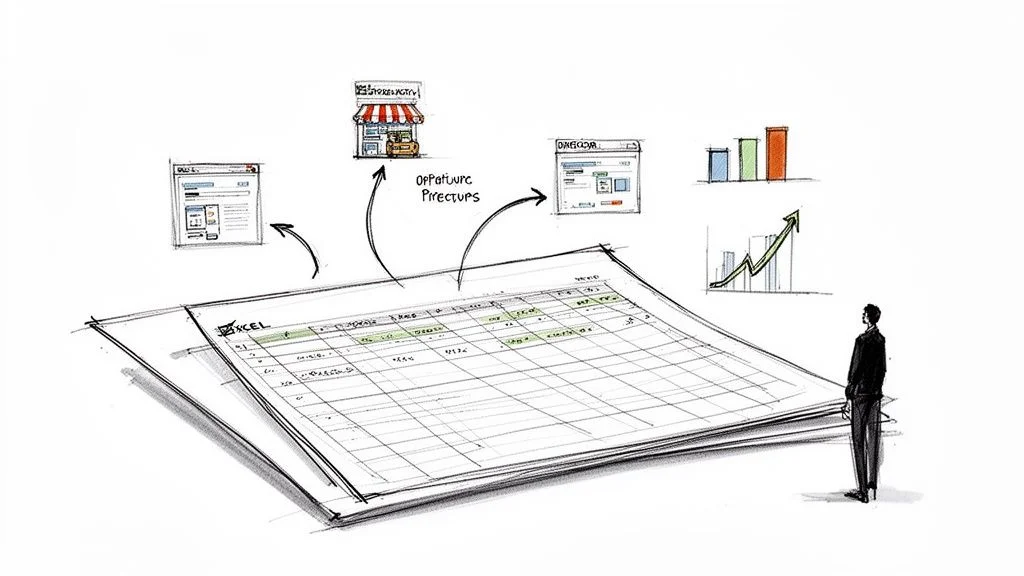
- For Sales — build a laser-targeted lead list from an industry directory in minutes, ready for your CRM.
- For Marketing — monitor competitor pricing in real-time and track customer reviews without lifting a finger.
- For E-commerce — pull product specs, SKUs, and stock levels from supplier sites automatically to keep your catalog updated.
Scraping to Excel turns the entire web into your personal, always-on database. You can spot trends before anyone else and build a serious competitive advantage based on real-world data.
Most scraping tools export data as a CSV file. Using a good CSV to Google Sheets workflow ensures your data is perfectly structured for sorting, filtering, and creating insightful charts.
The Fastest Way to Scrape Data with a Browser Extension
A no-code browser extension is the fastest way to scrape website data to Excel — install it, navigate to the page, select the data fields you want, and click Export to get a clean Excel file in under a minute.
Your First Scraping Project in 3 Simple Steps
- Install the Extension — go to the Chrome Web Store, find Clura, and add it to your browser in about ten seconds.
- Navigate and Activate — go to the webpage you want to scrape and click the extension's icon in your browser toolbar.
- Select and Export — the tool instantly detects all the structured data on the page. Click the fields you want and hit 'Export.'
The web scraping market is projected to soar from $0.99 billion in 2025 to $2.28 billion by 2030. This growth is all about putting real-time intelligence into everyone's hands. For a deeper dive into browser-based tools, check out our post on using a Chrome extension data scraper.
Get Clean Excel Data from Any Website Today
Clura automatically identifies all structured data on any page and exports it as a perfect Excel file. Free plan available — no credit card needed.
Add to Chrome — Free →Choosing Your Best Method for Web Scraping
A no-code browser extension handles about 80% of everyday scraping tasks. Use Google Sheets IMPORTXML for simple structured tables, and a Python script for complex, large-scale, or recurring projects that demand maximum flexibility.
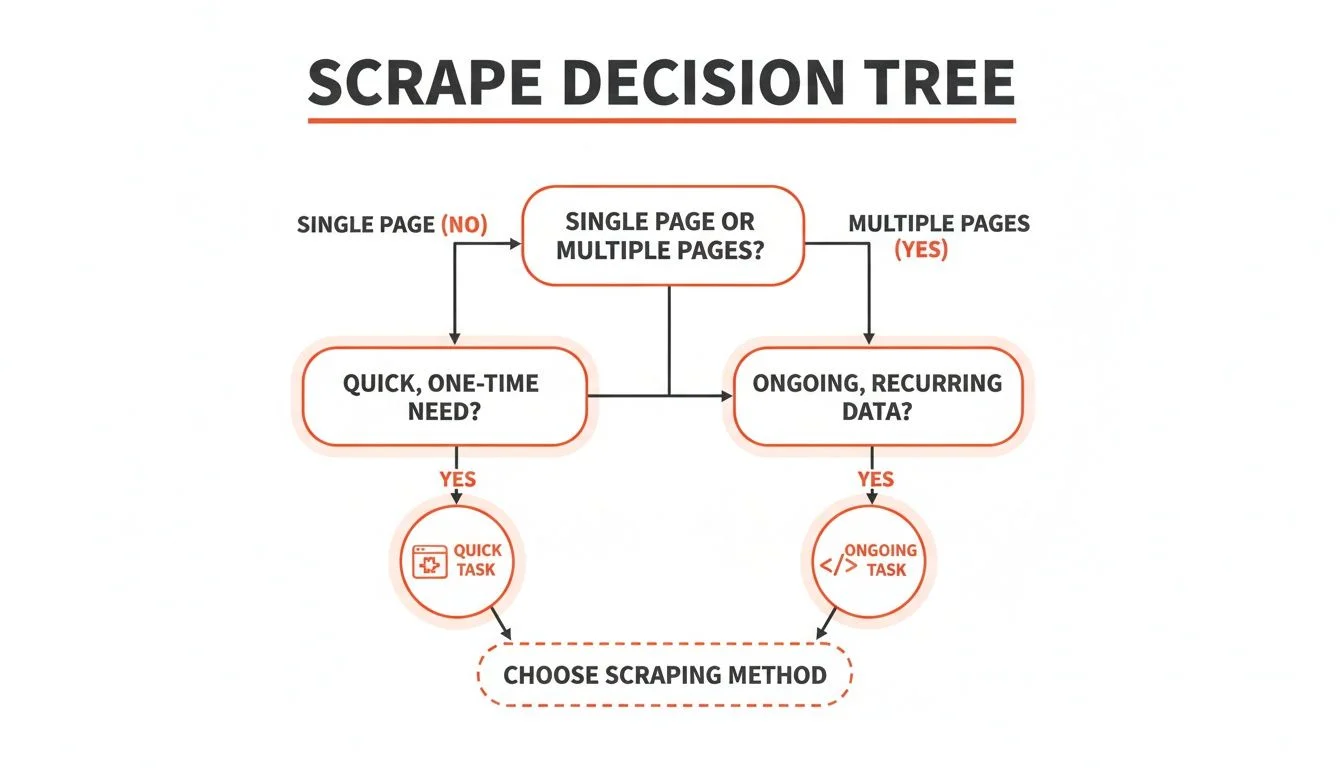
| Method | Best For | Ease of Use | Scalability | Flexibility |
|---|---|---|---|---|
| No-Code Extension | Quick, one-off tasks & simple sites | Very Easy | Low to Medium | Limited |
| Google Sheets IMPORTXML | Simple, structured data tables | Easy | Low | Low |
| Python Script | Complex, recurring, large-scale jobs | Difficult | High | Very High |
A Clever Trick Using Google Sheets and IMPORTXML
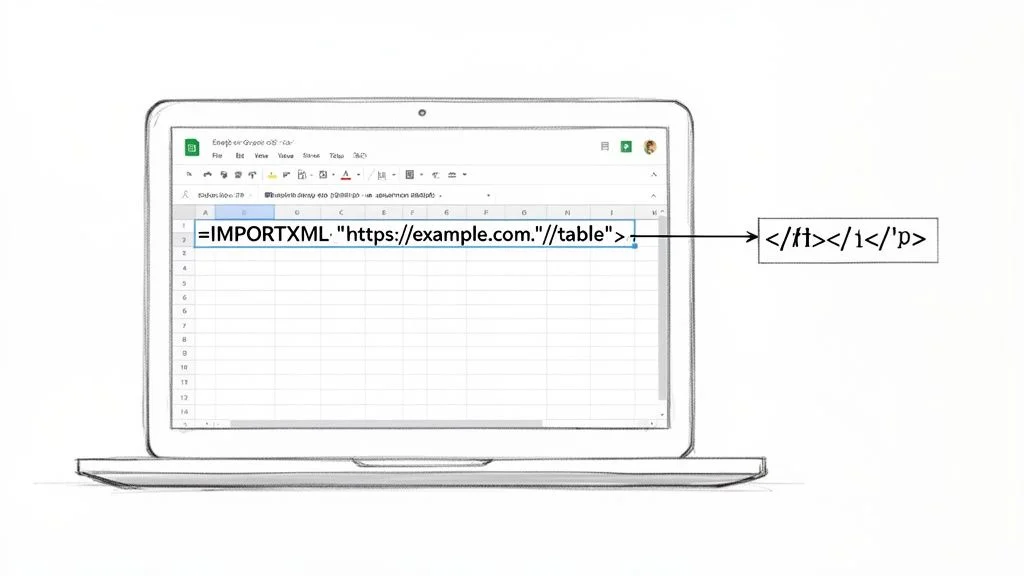
The IMPORTXML function in Google Sheets lets you pull structured data directly from any webpage using an XPath query, creating a live, auto-refreshing data source you can instantly save as an Excel file.
How IMPORTXML Works Its Magic
The function needs just two things: the URL of the page you want to scrape and an XPath query. For example: =IMPORTXML("https://en.wikipedia.org/wiki/List_of_largest_companies_by_revenue", "//table[contains(@class,'wikitable')]"). That one line tells Google Sheets to go to Wikipedia's list and grab the main data table.
Finding the Right XPath
- Go to the webpage with the data you want and right-click on the element.
- Choose 'Inspect' from the menu to open Chrome's Developer Tools.
- In that panel, right-click on the highlighted HTML code.
- Navigate to Copy > Copy XPath and paste it into your IMPORTXML formula.
This Google Sheets method is an incredibly efficient way to handle simple scraping tasks. It turns a static webpage into a live data source in your spreadsheet, which you can save as an Excel file with one click.
Diving into Python for Serious Web Scraping
Python's Requests, BeautifulSoup, and Pandas libraries form a powerful assembly line: fetch the raw HTML, parse it into structured data, clean it, and export a perfect Excel file — ideal for large-scale or recurring scraping projects.
When you need unmatched power and complete control, it's time to embrace Python. The AI-powered web scraping market is set to skyrocket from $7.79 billion in 2025 to an incredible $47.15 billion by 2035.
- Requests — the scout that grabs raw HTML from a website's server.
- BeautifulSoup — steps in to parse that messy HTML into a structured, searchable format.
- Pandas — helps you clean, structure, and organize your data, then export it to a perfect Excel file with a single command.
A basic Python script fetches the page, finds all article headlines in <h2> tags with a specific class, loops through them, and saves everything to a headlines.csv file that opens perfectly in Excel. From there, the possibilities are endless.
Essential Rules for Ethical Web Scraping
Before scraping, check the site's robots.txt and Terms of Service, respect rate limits to avoid overwhelming servers, and stick to public non-personal data to stay legally compliant.
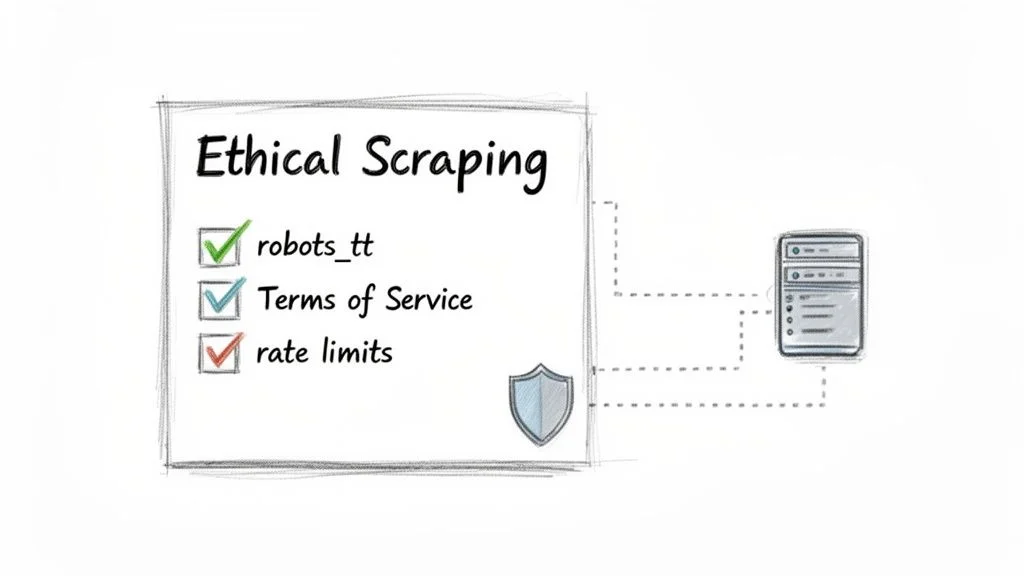
- Check robots.txt — type website.com/robots.txt into your browser; this file tells bots which areas are off-limits.
- Read the Terms of Service — this legal document details the site's data collection policies.
- Limit your request rate — add short delays between requests to mimic human browsing.
- Stick to public data — scraping publicly available, non-personal data is generally fine; sensitive user information is not.
The web scraping software market is projected to hit $2.7 billion by 2035. With that growth, the spotlight on compliance is only getting brighter. Read our full guide on the legality of web scraping for a complete breakdown.
Frequently Asked Questions
Is web scraping to Excel legal?
Generally, scraping publicly available information is okay — think product prices on an e-commerce site or business addresses from a directory. However, you must play by the rules. Always check the website's Terms of Service and its robots.txt file. Steer clear of personal data, copyrighted material, and anything behind a login.
Why did my scraper suddenly stop working?
Getting blocked usually means you're sending too many requests too quickly, and the website's defenses have flagged you as a bot. Websites use CAPTCHAs and IP bans to block scrapers. The fix is to slow down and limit your request rate. If you're still getting blocked, using a tool with proxy rotation can help by making your requests look like they're coming from different users.
Can I scrape data that requires a login?
Technically yes, but you almost certainly shouldn't. Scraping data from behind a login is usually a direct violation of a site's Terms of Service and can get your account banned or land you in legal trouble. Stick to public data — there's plenty of valuable information out there without crossing that line.
How do I track data that changes constantly?
If you're tracking live prices, flight data, or stock information, you need your scraper to run on a schedule. A custom Python script can be set to run every minute or hour. If you're using a no-code tool, many browser extensions have built-in monitoring features that will automatically re-scrape a page whenever the data changes.
Conclusion
Scraping website data to Excel is now a practical skill for anyone — not just developers. Whether you choose a no-code browser extension for instant results, Google Sheets IMPORTXML for quick table pulls, or Python for large-scale power, there's a method that fits your needs perfectly.
Start with the browser extension approach for your first project. It requires zero setup and delivers a clean Excel file in under a minute. Once you've experienced the time savings, you'll never go back to manual copy-paste.
Explore related guides:
Skip the Headaches and Get Clean Data Instantly
Clura is an AI-powered browser extension that automates data collection from any website in a single click. Explore prebuilt templates and start scraping for free today.
Add to Chrome — Free →About the Author