
Master Web Scraping With Chrome in Minutes
Clura Team
Web scraping with Chrome turns your everyday browser into a powerful data-gathering tool — no code required for most use cases. From LinkedIn profiles and industry directories to product listings on Amazon, Chrome is the gateway to a universe of valuable information, and modern extensions make extracting that data as simple as pointing and clicking.
The web scraping market hit USD 754.17 million in 2024 and is projected to reach USD 2,870.33 million by 2034. A massive part of this growth comes from accessible, browser-based tools that put real-time competitive intelligence in the hands of sales, marketing, recruiting, and e-commerce teams without requiring a single line of code.
Scrape Any Website Directly in Chrome — No Code
Clura's AI Chrome extension automatically detects data patterns, handles pagination and logins, and exports clean structured CSV files with a single click.
Add to Chrome — Free →Why Chrome Is Your Secret Weapon for Data Extraction
Chrome is ideal for web scraping because it already renders every website you visit — browser-based tools can work with your active login sessions, handle JavaScript-heavy pages, and export data without any server-side setup.
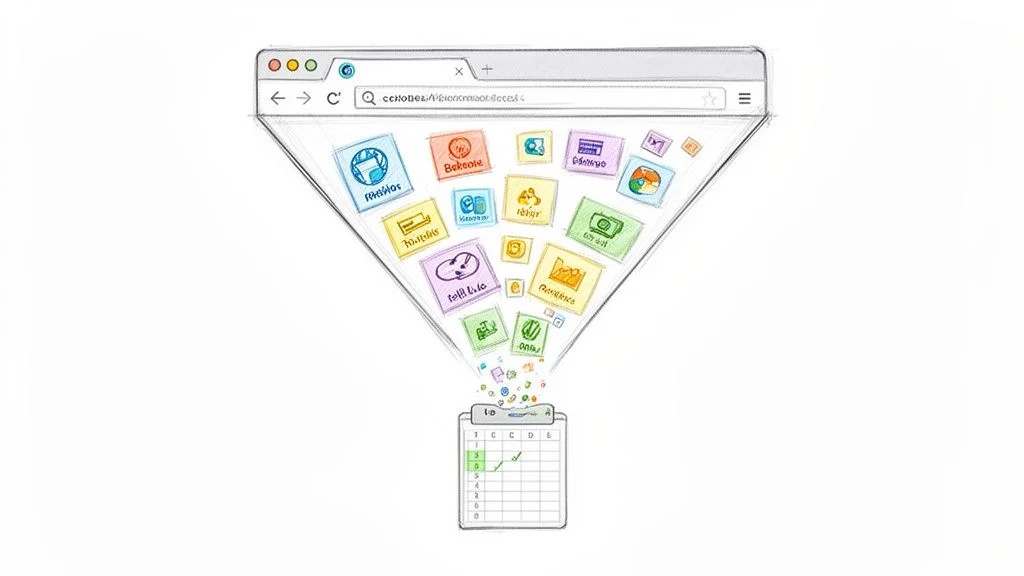
Instead of manually highlighting, copying, and pasting row after tedious row, you can automate the whole process. Modern Chrome extensions require no coding, can handle dynamic JavaScript-heavy sites that trip up older scrapers, and work with your logged-in sessions — a huge plus for grabbing data from social networks or platforms that require an account.
| Method | Best For | Ease of Use | Scalability |
|---|---|---|---|
| Browser DevTools | Quick one-off data grabs from a single page | Very Easy | Very Low |
| Chrome Extensions | Automating repetitive data collection without code | Easy | Medium |
| Headless Chrome / Puppeteer | Large-scale automated scraping jobs from a server | Hard | Very High |
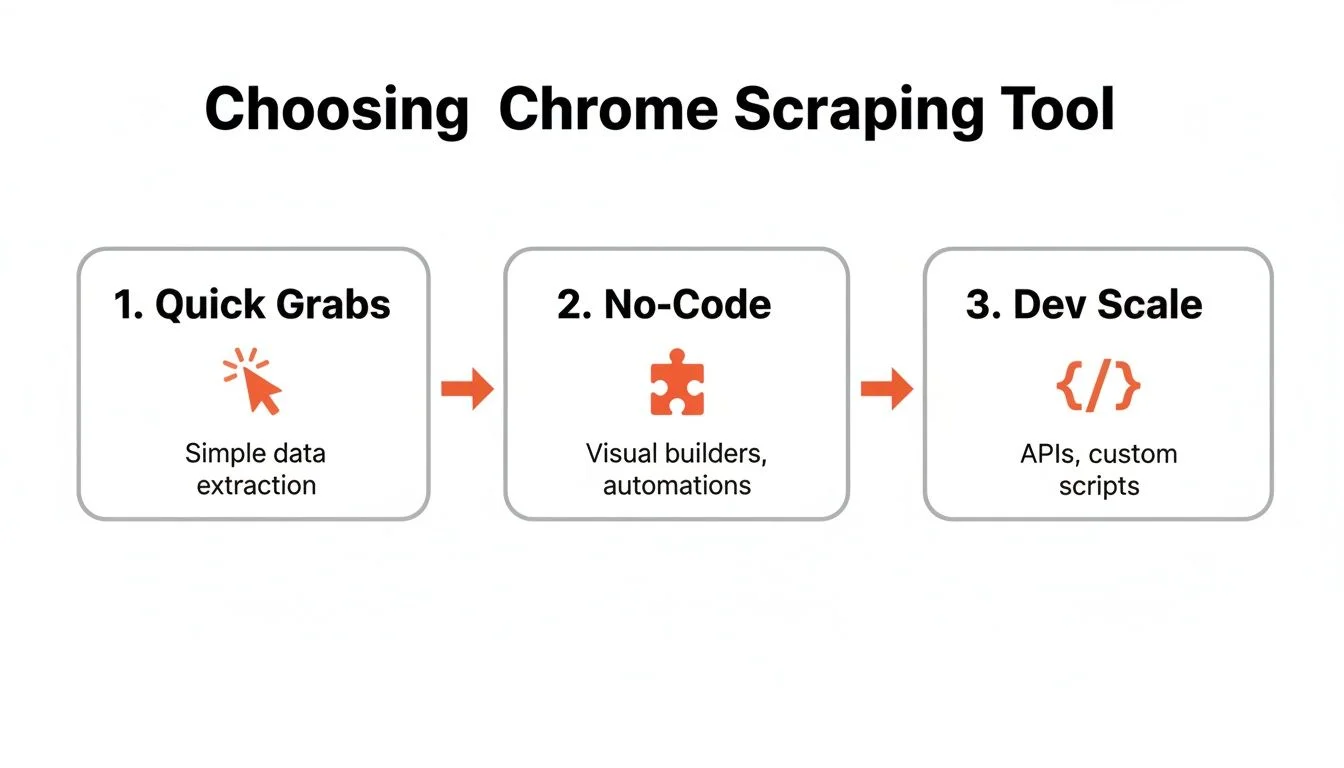
Choosing Your Chrome Scraping Method
Choosing the right Chrome scraping method depends on your project scale and technical skill: DevTools for quick one-off grabs, no-code extensions for business users who need recurring structured data, and Headless Chrome for developers building large automated pipelines.
The Quick-and-Dirty Method: Browser DevTools
Chrome's built-in Developer Tools are great for super-fast one-time data grabs. Right-click any page and select Inspect, find the HTML containing the data you want, and copy it out. It is instant and free. The catch is that it is completely manual and not scalable for hundreds of pages.
The Sweet Spot: No-Code Chrome Extensions
Chrome extensions are an absolute game-changer for business users who need structured data without writing code. They add a visual interface directly onto your browser. For building a prospect list of 500 leads from a business directory, a good data scraping Chrome extension lets you point and click on names, job titles, and company info — the tool intelligently finds and pulls that same data from every profile, even across multiple pages.
The Powerhouse: Headless Chrome and Puppeteer
Headless Chrome runs without a visual interface, controlled by code using a library like Puppeteer. This is built for running massive automated scraping jobs on a server and integrating data collection directly into other software. It offers maximum power and flexibility but requires serious coding knowledge and setup.
How to Scrape a Website With a Chrome Extension: Step-by-Step
Scraping a website with a Chrome extension takes four steps: install the extension, click on the data elements you want to collect, configure pagination handling, then export your clean structured dataset as a CSV or Excel file.
Step 1: Install and Activate Your Scraping Tool
- Go to the Chrome Web Store and find your no-code scraper of choice — we use Clura for this walkthrough.
- Click Add to Chrome and approve the permission pop-up.
- Click the puzzle piece icon in your Chrome toolbar and pin the extension to keep it visible and ready.
Step 2: Select Your Data With a Single Click
Hover your mouse over the first piece of data you want — say, a company name — and click on it. The AI instantly scans the page structure and highlights all other company names. Give that data a label like Company Name, then repeat for Phone, Website, and Contact Email. You are training the AI in real time.
Step 3: Capture Data from Multiple Pages
Once you have selected all your data fields, click on the Next button or page number link at the bottom of the list. The extension recognizes this as the pagination element and takes over, automatically navigating and scraping every single page until the job is done — no manual clicking required.
Step 4: Clean and Export Your Final Dataset
Once the scraper finishes, you get a preview of all collected data inside the extension window. Review the columns, rename any fields, and trim unwanted text. When satisfied, click Export to get a perfectly structured CSV or Excel file ready for your CRM, email campaign, or analysis tool.
Try This Workflow Right Now — Free
Install Clura and scrape your first website in under two minutes. Prebuilt templates for LinkedIn, Amazon, Crunchbase, and more are included on the free plan.
Add to Chrome — Free →Advanced Strategies for Seamless Scraping
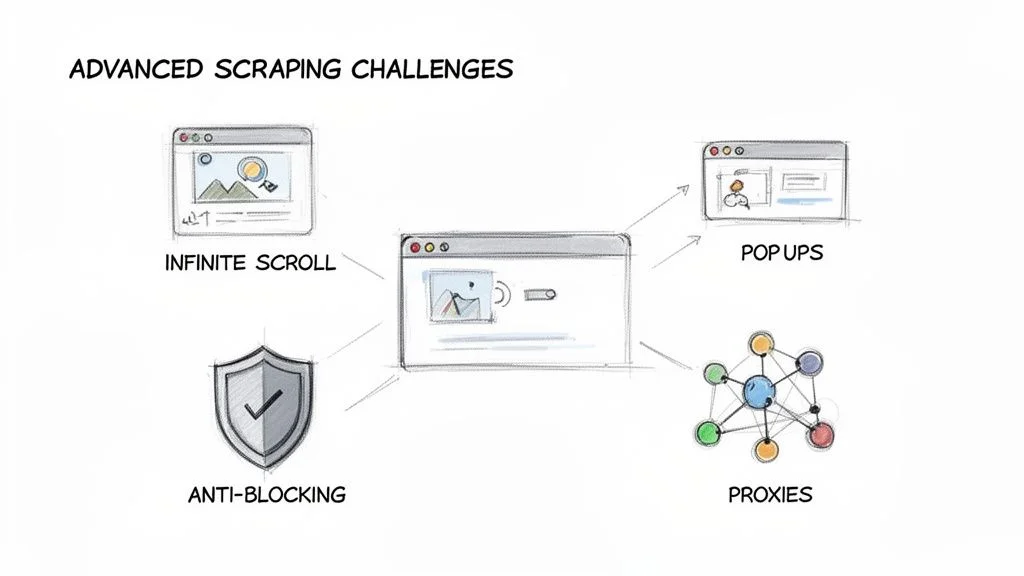
Advanced Chrome scraping strategies include using proxies for large-scale jobs, managing rate limits to avoid blocks, handling dynamic infinite-scroll pages, and using browser sessions to scrape authenticated content behind logins.
Avoiding Blocks and Ensuring Data Quality
- Respect the rules: check robots.txt at domain.com/robots.txt before starting any scraping project.
- Act human: introduce small randomized delays between actions — good extensions often manage this automatically.
- Use proxies for big jobs: route traffic through different IP addresses to avoid triggering rate-limit blocks.
- Handle logins: browser-based extensions use your existing sessions to scrape authenticated content naturally.
Real-World Use Cases to Grow Your Business
For sales and lead generation: fire up your Chrome extension on directories like Clutch to pull company names, websites, founders, and years in business in minutes — a perfectly clean qualified prospect list ready for personalized outreach. For e-commerce: set up a daily scraper checking your top 10 competing products for prices, stock levels, and review scores. For recruiting: scrape profiles from LinkedIn, job boards, or GitHub to build a private searchable talent pool.
Frequently Asked Questions
Is it legal to scrape a website with Chrome?
Yes, it is generally legal to scrape publicly available data. You are not breaking any laws by collecting information a website openly displays to the public. The key is to respect a site's terms of service, not target private data, and be mindful of how your scraping affects their servers.
Can I scrape data from a site that needs a login?
Yes — this is one of the key advantages of browser-based scraping tools. Because the extension lives inside your Chrome browser, it works with your existing login sessions. Log in to the site normally, and the scraper can see and extract everything your logged-in account can access.
What happens when a website changes its layout?
Modern AI-powered tools are smart enough to understand the context of a page visually, not just rigid code structures. If a button moves or a section gets a new name, an AI tool can often adapt on the fly without breaking. This means you spend far less time fixing scrapers and more time using your data.
How do I scrape websites with infinite scroll using Chrome?
Browser-based Chrome extensions see the website exactly as you do — fully rendered with all interactive JavaScript. They can wait for content to appear as you scroll, click dynamic load-more buttons, and navigate infinite feeds. This is a key advantage over traditional server-side scrapers that miss dynamically loaded content.
What is the best Chrome extension for web scraping?
Clura is one of the top-rated Chrome scraping extensions with a 4.9/5 rating from over 100 reviews. It offers one-click AI data extraction, prebuilt templates for popular sites like LinkedIn and Amazon, automatic pagination handling, and clean CSV export — all without any coding required.
Conclusion
Web scraping with Chrome puts a professional data collection capability in the hands of anyone who can point and click. Whether you use DevTools for a quick one-off grab, a no-code extension for recurring business workflows, or Headless Chrome for developer-grade pipelines, the right tool is the one that matches your skill level and project scale.
The most important step is to just start. Pick a website you visit every day and try pulling a list of data from it. Experience that moment when a task that used to take hours completes in seconds — that is what makes browser-based scraping so transformative for modern business teams.
Explore related guides:
- Data Scraping Chrome Extension — a complete guide to the best Chrome extensions for data extraction
- Scrape Data From Website Chrome Extension — step-by-step tutorial for extracting structured data using Chrome
- Web Scraping Legality — a detailed guide to the legal and ethical boundaries of browser-based scraping
Stop Copy-Pasting. Start Building Real Data Sets.
Get started free at Clura.ai and explore prebuilt templates to automate your research, lead generation, and competitor monitoring today — no code required.
Add to Chrome — Free →About the Author